
Advanced Edits and Playground
The spritesheet editor gives you full control over every frame of your generated animation. Regenerate individual frames, scale up or down, erase unwanted pixels, combine assets from your library onto any frame, create multiple animations from a single character, and test your refined spritesheets in the built-in Phaser playground before exporting.
Video Tutorial
Phaser Playground
Test your refined spritesheets directly inside the built-in Phaser playground before exporting. Preview how your animation looks and plays in a real game engine environment, catching any issues before you integrate it into your project.
Video Tutorial
Editor Overview
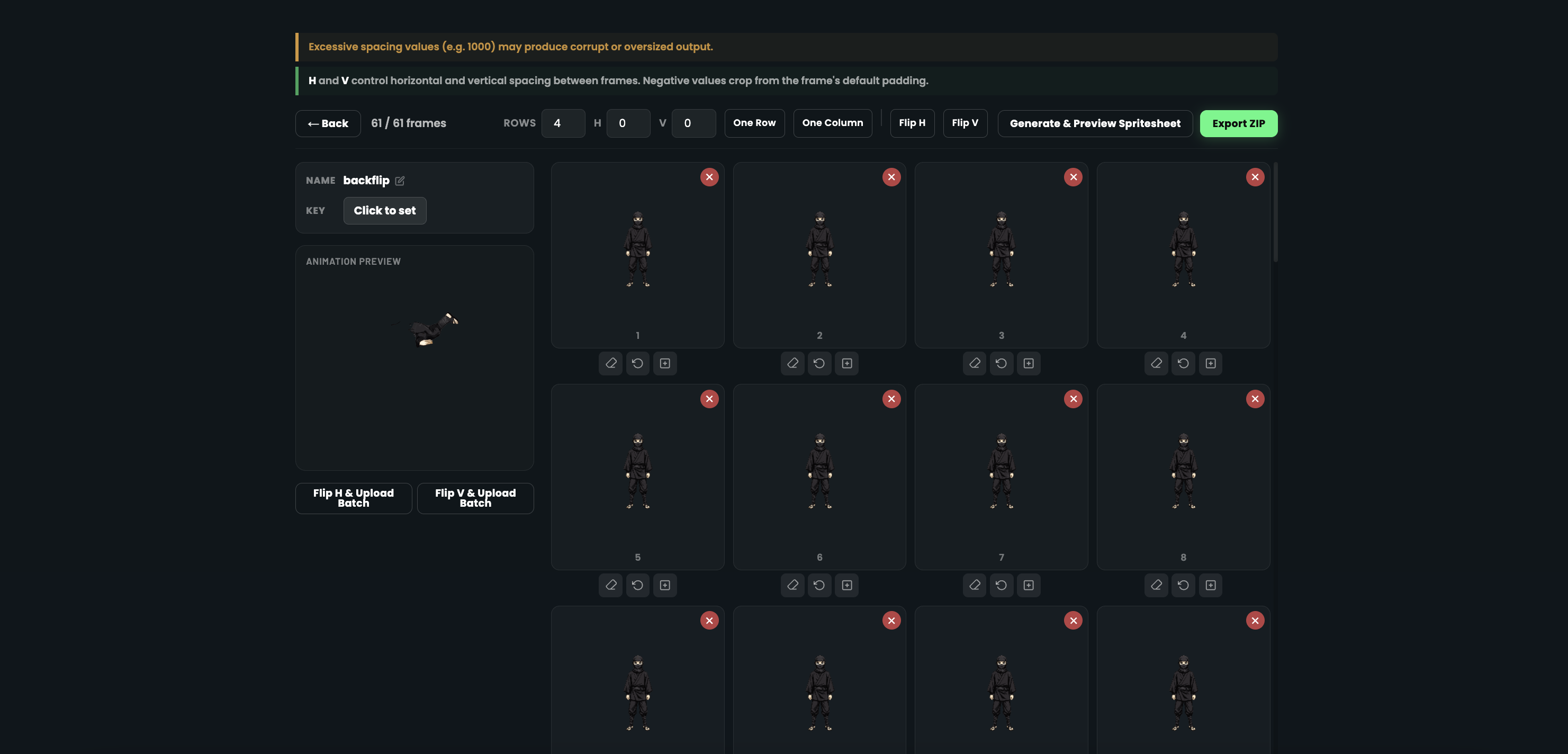
When you open a spritesheet in the editor, you'll see all frames laid out in sequence with a live animation preview. Each frame has its own set of action buttons for quick edits.
The toolbar at the top provides global actions — flip the entire animation, upload a flipped version as a new batch, or export in your preferred format.
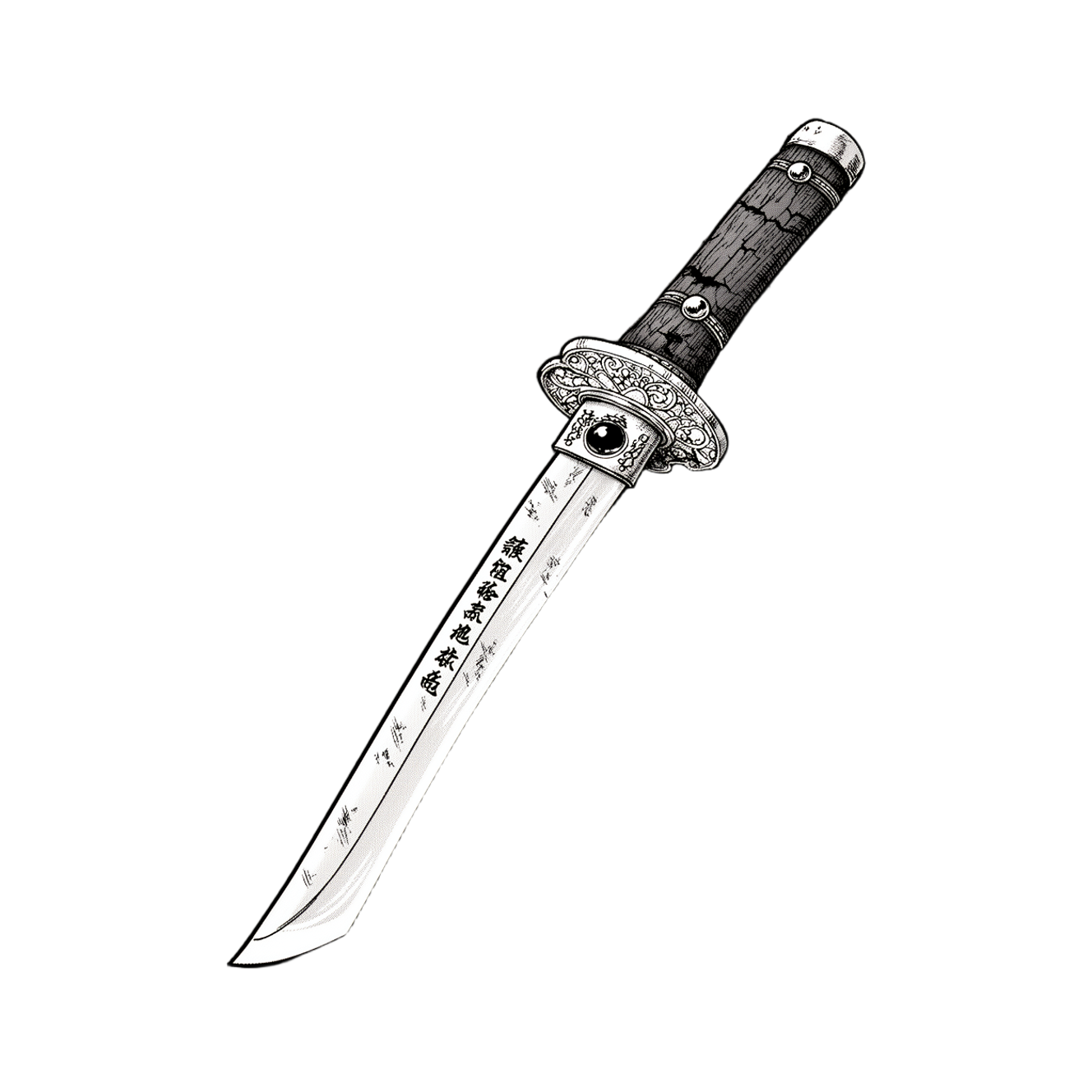
Asset Library
Browse your full asset library directly inside the editor. Select any asset you've previously created — weapons, shields, hats, items — and attach it to a character frame for combined animation.
Regenerate from a Specific Frame
Need a different take on a particular frame? Click the regenerate button on any frame to re-generate it using the AI engine. This is perfect for fixing a single off frame without touching the rest of the animation.
You can also regenerate from a frame to create advanced, custom animations — chain multiple regenerations to build complex multi-step movement sequences and create multiple animations from a single character.
Scale Up or Down
Resize your entire spritesheet to match the resolution your game needs. Scale up for high-res displays or scale down for retro-style games — the editor preserves pixel-perfect quality at every size.
Combine Assets with Characters
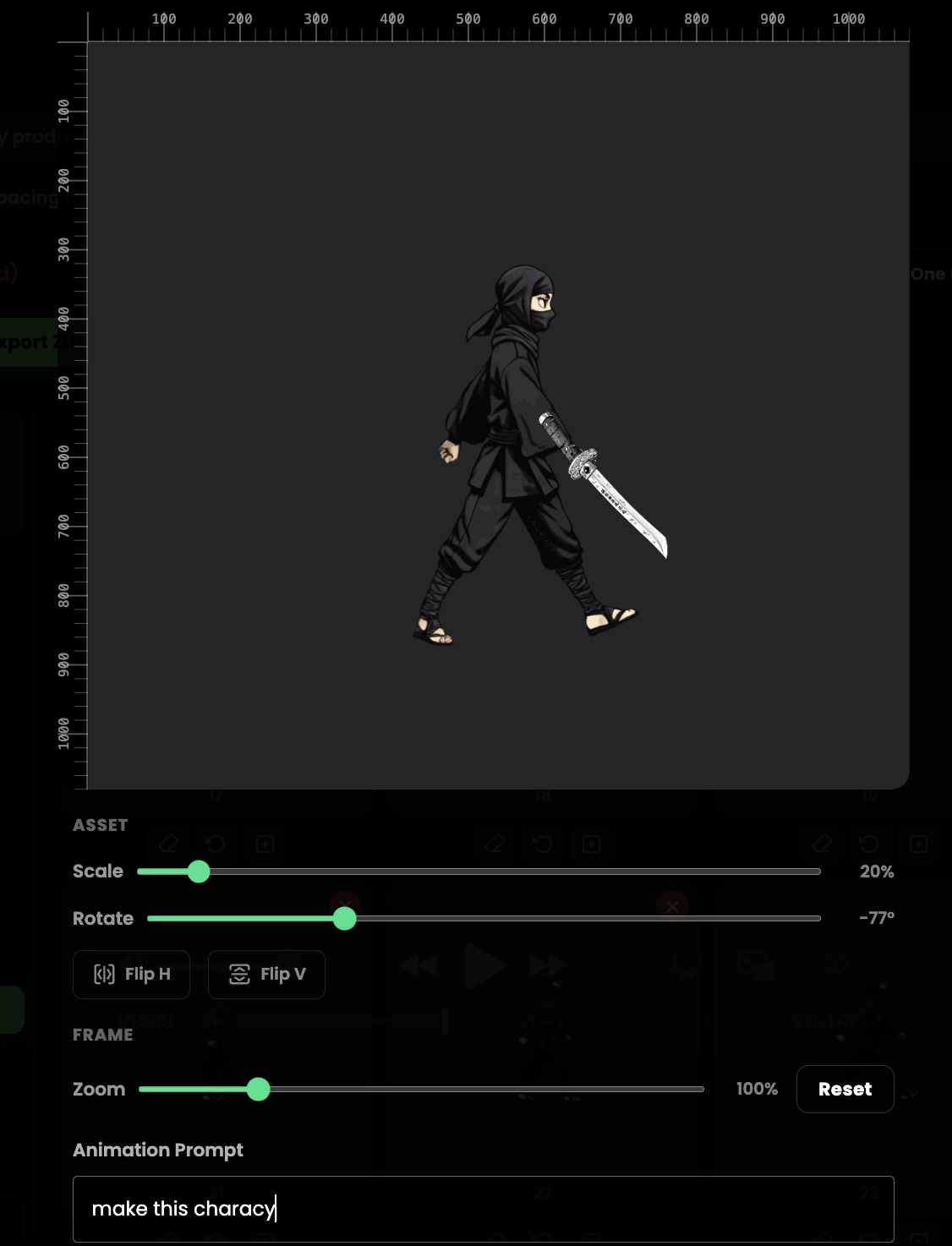
The asset combiner lets you layer any asset from your library onto a specific frame. Select an asset, then position, scale, rotate, and flip it on top of the character using the visual editor.
Once positioned, the combined image is sent back through the animation engine to generate a spritesheet that incorporates both the character and the asset together. This is ideal for adding weapons, shields, hats, or any held item.
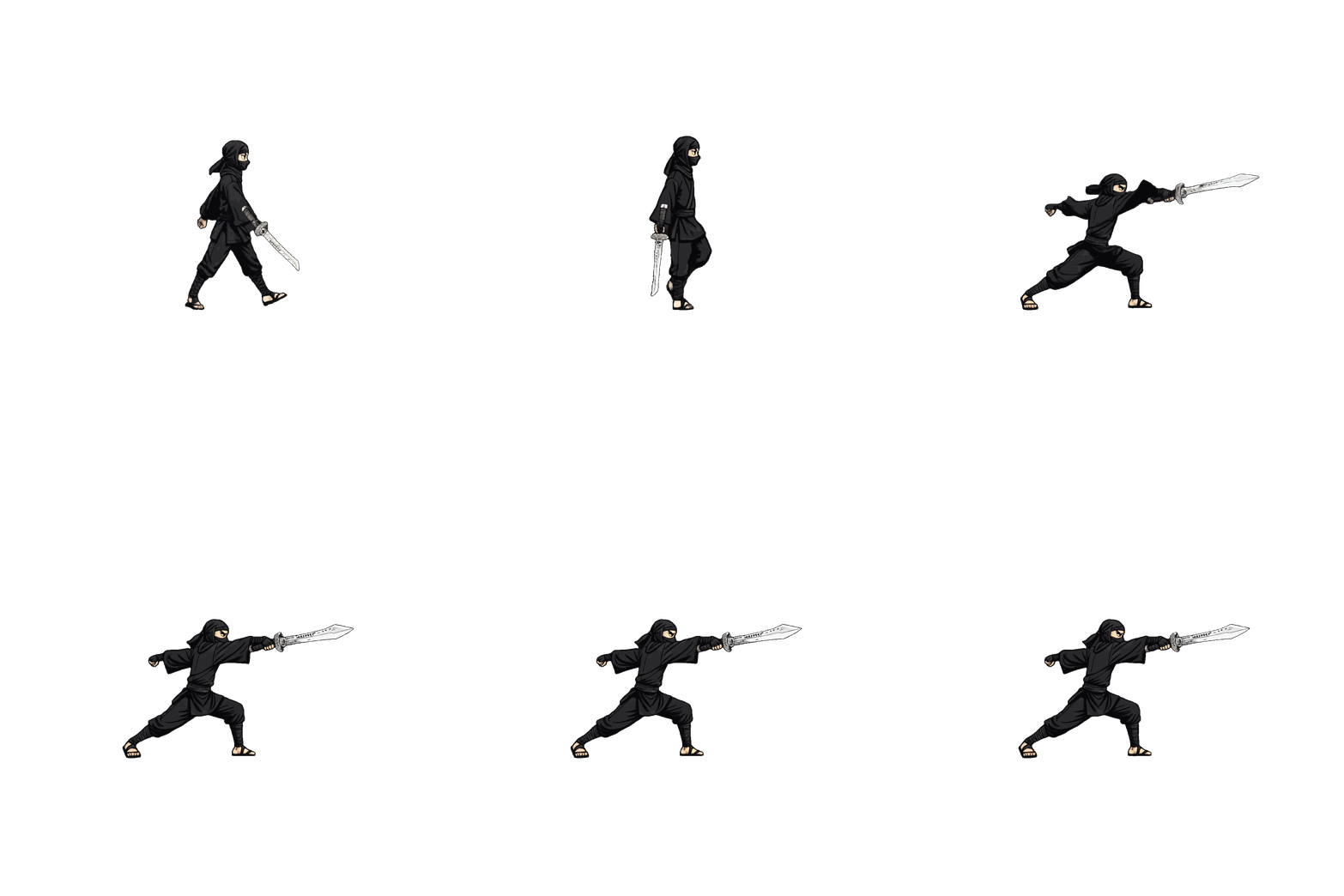
Asset Combined Result
After combining an asset with your character, the AI generates a fully animated spritesheet with both elements together. The result is a seamless animation where the asset moves naturally with the character.
Eraser Tool
The eraser tool removes unwanted pixels from any frame. Choose between brush mode for freehand erasing or pixel mode for precise single-pixel removal.
Adjust the brush size to match the level of detail you need. The eraser displays a checkerboard background so you can clearly see which areas have been erased to transparency.
Flip Animations
Flip your entire animation horizontally or vertically with one click. This instantly creates mirror versions — essential for side-scrolling games where characters need to face both left and right.
After flipping, you can upload the result as a new batch with a custom name, keeping both the original and flipped versions in your library.
Exporting Your Spritesheet
When your animation is ready, export it in the format your game engine requires. Available export options include individual frame images, animated GIF, a single spritesheet PNG, and JSON or XML atlas metadata.
All exports are optimised for direct import into popular game engines including Unity, Godot, GameMaker, and Buildbox.