
Create Assets
Assets are the items, weapons, props, and objects that bring your game world to life. Spritesheets.ai lets you generate pixel art assets the same way you create characters — from a text prompt, a reference image, or completely at random. Once created, assets can be combined with characters inside the spritesheet editor to produce fully animated scenes.
Asset Creation Workflow
The asset creation flow mirrors the character creation wizard. Head to the Assets tab on your dashboard and click "Generate" to describe a specific asset, or "Roll the Dice" for a random AI-generated item.
All the same options are available: write a detailed prompt, upload a reference image, choose an art style, and set the generation priority. You can use the same input image or change to a different art style, or create from only a prompt.
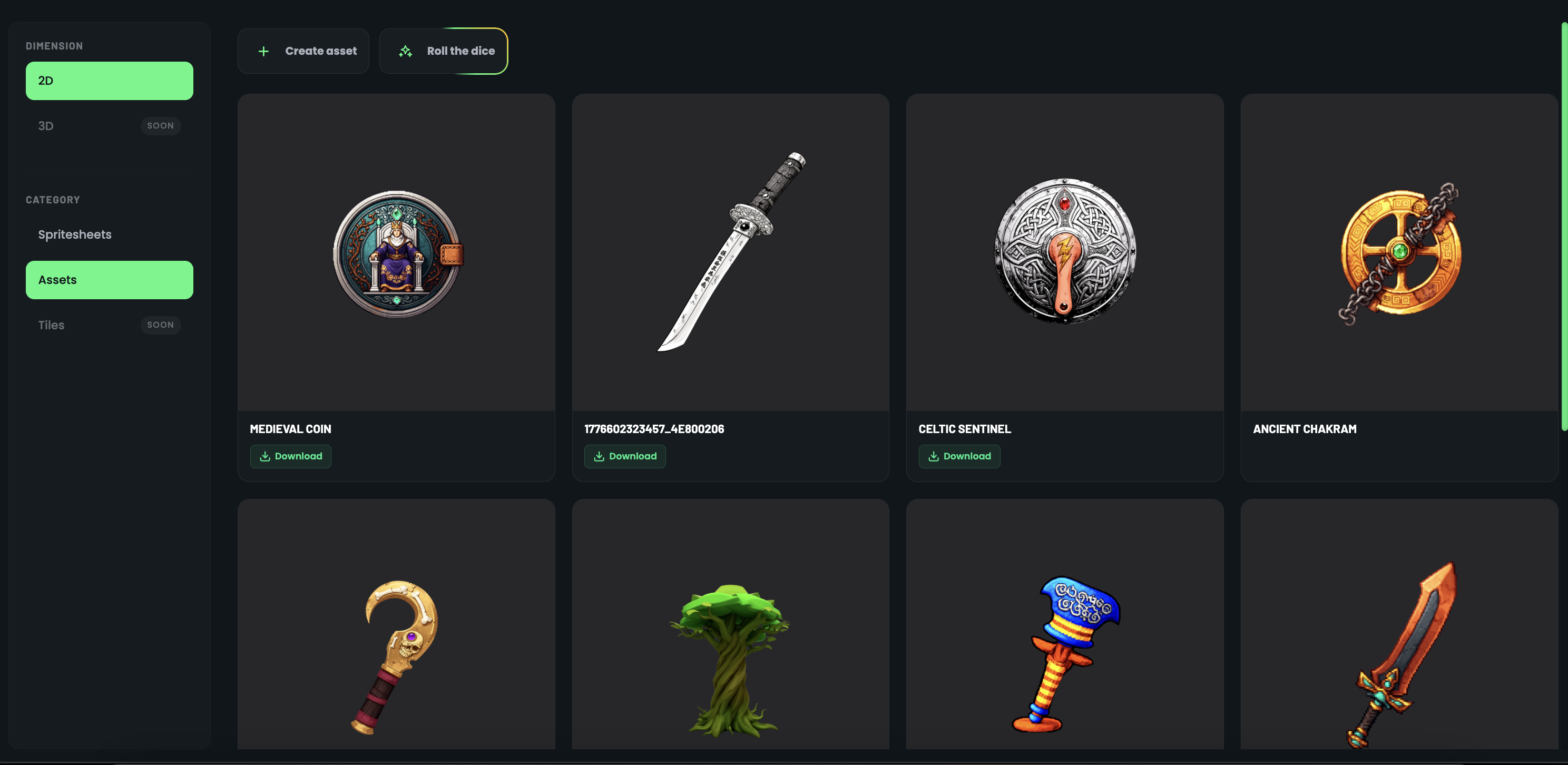
Prompts and Reference Images
Describe your asset in the prompt field — for example, a treasure chest with golden trim and glowing particles, a futuristic laser sword, or a health potion with swirling liquid.
If you have existing concept art or a sketch, upload it as a reference image. You can lock the output to match the reference closely, or re-interpret it in a different pixel art style.
Art Styles and Priority
Pick an art style from the curated library, just like with characters. The same style options apply — retro, modern HD pixel art, and everything in between.
The priority slider lets you balance between prompt accuracy and reference fidelity, giving you full control over the final result.
Using Assets in Spritesheets
Once an asset is in your library, you can combine it with any character inside the spritesheet editor. Position, scale, rotate, and flip the asset on top of your character, then generate a fully animated spritesheet with both elements together.
This workflow is perfect for adding weapons, shields, hats, or any equipment to your character animations without regenerating the character from scratch.